Combine and split work-order PDFs without uploading
If you need to combine several work-order PDFs for filing or handover, you can arrange their pages and export a copy in your browser. This walkthrough uses two fictional job packets so you can check the result before working with your own documents.
The workflow is manual: you choose the documents, review their order and save the output. ScanApp does not automatically sort documents by job ID, name the resulting files or produce an inventory spreadsheet.
Download the practice files
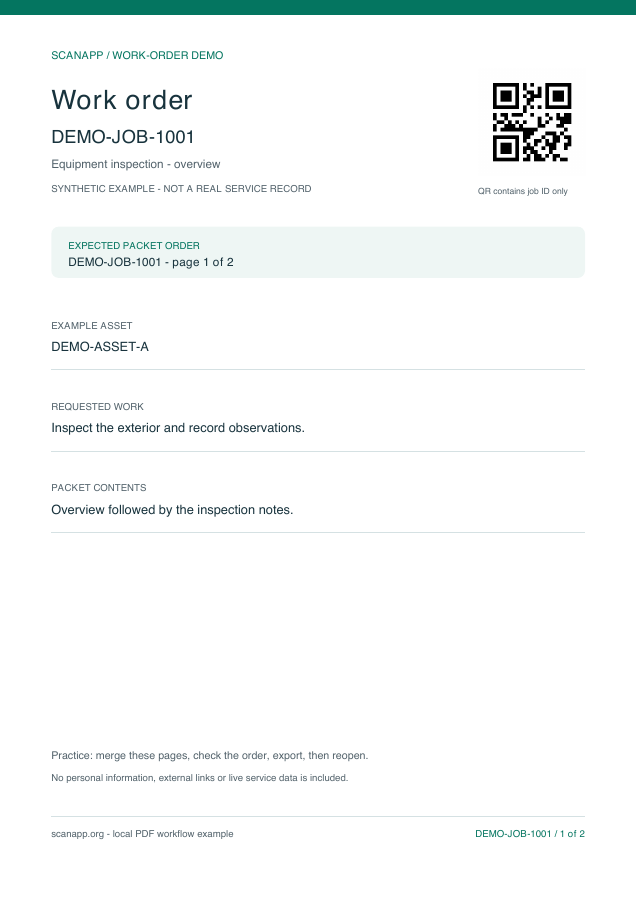
These small, unprotected PDFs contain synthetic work orders, with no real customer information. The QR codes contain only the printed demo job IDs.
| File | Contents | Pages |
|---|---|---|
| Job 1001: overview and notes | DEMO-JOB-1001 overview, then inspection notes |
2 |
| Job 1002: overview | DEMO-JOB-1002 overview |
1 |
Save both PDFs to your device. If a link opens a PDF preview, use your browser’s download or save option.
Combine the two job packets
- Open Merge PDFs and choose Open PDFs.
- Select the downloaded Job 1001 PDF first. Check that the workspace contains its two pages.
- Choose Add PDFs / merge and select Job 1002. You should now have three pages.
- Review the page list and preview. Select a page and use Move earlier or Move later if you need to correct the order.
- Leave Export pages empty to include all three pages, then choose Download edited PDF.
- Open the downloaded file, normally named
scanapp-edited.pdf, and check its contents before renaming or sharing it.
The expected order is:
| Exported page | Job ID | Page content |
|---|---|---|
| 1 | DEMO-JOB-1001 |
Work-order overview, page 1 of 2 |
| 2 | DEMO-JOB-1001 |
Inspection notes, page 2 of 2 |
| 3 | DEMO-JOB-1002 |
Work-order overview, page 1 of 1 |
Compare your output with the three-page reference packet or the plain-text expected order. The reference is for checking content and page order; your exported PDF does not need to be byte-for-byte identical.
Extract one job for a separate handover
- Open Split and extract PDF pages and load the three-page file you just exported.
- Enter
1-2in Export pages and choose Download edited PDF. - Reopen the output. It should contain only the two Job 1001 pages, with the overview before the inspection notes. Here is the two-page reference result.
- To save Job 1002 separately, change the range to
3and export again. Each range refers to the current workspace order.
The original downloaded files remain unchanged. Save each exported copy with a useful filename yourself; ScanApp does not automatically name files using job IDs.
Check a QR job identifier
Open the merged packet in the PDF QR reader. Select page 1 and choose Read QR code. The expected text is DEMO-JOB-1001. On page 3, the expected text is DEMO-JOB-1002.
The reader processes one readable QR code on the selected page. It does not scan the entire document automatically, read every barcode type, verify a service record or check a job against a business system. Page 2 of this sample has no QR code; its printed job ID and page label are the checks to use there.
Before using real work orders
- Keep your originals and reopen every exported file to check page order, missing pages and legibility.
- The PDF workspace accepts unprotected PDFs up to 40 MB and 200 pages combined. The separate PDF QR reader accepts a PDF up to 20 MB and 200 pages.
- Password-protected PDFs and signature-field documents are not supported by the workspace. Supported form fields become flat visible content during export. Existing bookmarks, attachments and document-level metadata are not promised to survive merging.
- Document processing stays on your device. Loading the website still requests its resources and analytics; opening a link inside a document visits that destination.
- For offline PDF editing, complete Enable offline use in the workspace while connected and wait for Ready offline. Download the practice files before disconnecting. Browser storage cleanup can remove the offline files.
If your team’s job is instead to automatically separate hundreds of packets, match identifiers to a register or export checked rows, contact me with the workflow you need. Describe the required output and how often the task occurs; you do not need to send customer documents to explain it.